Customer Care
My CEIVA® is having trouble connecting on my phone line.
If your CEIVA is connecting via a broadband or wireless connection click HERE
If your trying to connect your CEIVA in a office click HERE
Please take a look at the questions below and see if they can help to get you connected. If not, please feel free to contact us at 877-MYCEIVA.
Has your CEIVA frame been unplugged from the power outlet or phone jack?
If you frame has been unplugged from the power outlet or phone jack, once plugged back in, your frame may not connect to the network. In order to reconnect your frame to the CEIVA network, press and hold both the black and white buttons on that back of the CEIVA frame, until the frame goes black. Once black, let go of both buttons. The frame will make 2 calls to the CEIVA Network. These calls can take up to 20 minutes total, so make sure not to use the phone until the CEIVA completes its calls.
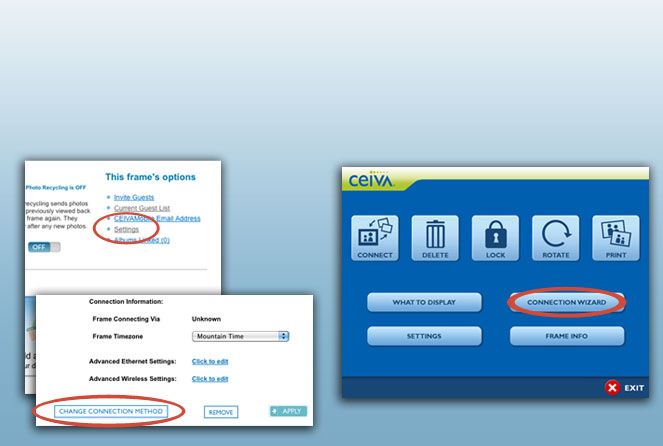
If your frame is connecting through a analog phone line, wireless network or Ethernet (broadband connector) then your frame should be set appropriately. FOR A CEIVA 7 AND CEIVA 8
- Press the Menu Button
- Depending on your s/w version, you would use the arrows buttons to highlight either Settings (then go to Connection Settings) or go directly to Connection Settings and press Select
- Go to How to Connect press Select
- Choose the method of connection by using the arrow buttons to highlight and press Select to move the yellow checkmark the correct area.
- Press and hold the white button on the back of your CEIVA 2 or CEIVA 3 frame. Continue to hold the button until you see the Dialing Prefix displayed on the screen (approximately 9 seconds). You will pass both the Slide Show as well as the Dial-In on screen messages. Once the "Dial In Control" page is displayed, release the white button and tap the black button on the back of the frame to step through the on screen options. If you are connecting via telephone and you don't need a prefix, set the frame for No Prefix if you need a prefix, set the frame for the one you need. If the one you need is not listed, contact us at 877-MYCEIVA
- Once you have made your selection, release the black button. You have now successfully entered a dialing prefix into the memory of your CEIVA 2 or CEIVA 3 frame. Your CEIVA 2 or CEIVA 3 frame will make use of this dialing prefix the next time it attempts to dial into the CEIVA Network. As an example, if you selected a dialing prefix of 9, your CEIVA 2 or CEIVA 3 frame would dial 9 + 123 + 456-7890. To remove the dialing prefix, simply follow the same procedure, and set the dialing prefix to "no prefix."
If your PicturePlan is expired, your CEIVA Digital Photo Frame will not connect to the CEIVA® Network to download any new photos. To check if your PicturePlan is expired, log into your CEIVA™ web account at www.ceiva.com. Once logged in, make sure you are on your My Frames page, once there click on the PicturePlan Expire link located toward the bottom rig
Search our Help Database
Once the PicturePlan is purchased, hold down both the buttons on the back of the frame until the screen goes black and then let go of both buttons. The frame will make 2 calls to the CEIVA Network. These calls can take up to 20 minutes total, so make sure not to use the phone until the CEIVA completes its calls.
Do you have DSL?
If the answer is yes, make sure that your receiver is plugged into a DSL filter. Your CEIVA runs on an analog signal and DSL converts your phone line to a digital signal. The DSL filter will filter out the digital signal and allow an analog product like your CEIVA™ to work properly. Your DSL provider should have sent you a DSL filter. If not, you can either contact your DSL provider or try purchasing one at a retail outlet like Radio Shack, Best Buy, etc.
Once you have added the DSL filter, hold down both the buttons on the back of the receiver until the screen goes black and then let go of both buttons. The receiver will attempt to make a call to the CEIVA Network. This call can take up to 20 minutes, so make sure not to use the phone until the CEIVA completes its call.
Have you moved your CEIVA to a new location?
You can find access numbers by using our Local Availability tool. Just enter the area code and phone number of the location you wish to query, as well as the encrypted code word and click the "Search Access Numbers" button. All local dial up numbers for your location will be displayed. In the unlikely event that local numbers are not available in your area, you have the option of electing for Toll-free service.
Please note: If local numbers are no longer available in your area, you will have the option of converting your subscription to our Toll Free Service Plan.
If you would like to change the dial in number of your frame, follow the directions below:
- Log in to your CEIVA account and from My Frames select the Frame Settings link.
- Next select the Change Dialing #.
- Enter the phone number where the frame will be dialing from and click on Next.
- The following page will confirm the number your CEIVA frame will be dialing from. You will need to also select up to three local dial-in numbers. We suggest selecting three dial-in numbers to provide your CEIVA frame with the most reliable dial-in experience.
- Click on Done to confirm your actions.
- Push and hold both the white and black buttons on the back of your CEIVA Digital Photo Frame until the LCD screen goes black, then release the buttons. Your CEIVA will then dial into the CEIVA Network" to reconfirm the frames settings, which of course includes the new telephone numbers you have selected. This is a two call process, so do not be alarmed when the Receiver completes its first dial-in and then starts a second. This reset will not cause any photos in your CEIVA Digital Photo Frame to be lost.
Always check with your phone company to determine whether or not a number is actually local. You are responsible for any long distance charges. Also, we expand local number coverage several times a year; so stay tuned to ceiva.com for future updates about netwo
Search our Help Database
Do you have an answering service?
Many people today pay their phone company an additional fee for voicemail service. This service notifies you there are messages waiting to be answered by causing the dial tone to stutter a bit when you first pick up the phone. This stuttering can affect the CEIVA when it is attempting to dial out. Try clearing out all of your messages so when you pick up the phone you no longer hear the stuttering, just one smooth dial tone.
Once you have cleared your voicemail, hold down both the buttons on the back of the receiver until the screen goes black and then let go of both buttons. The receiver will attempt to make a call to the CEIVA Network. This call can take up to 20 minutes, so make sure not to use the phone until the CEIVA completes its call.
If this works, please give CEIVA's Customer Care department a call at 1-877- MYCEIVA so they can add a delay to your dialing prefix, so you can continue using your answering service.
Do you have digital phone service or Vonage?
The CEIVA Digital Photo Frame is designed for use with a regular analog phone line. Companies, like Qwest Communications may run a digital signal through these lines for a clearer connection. This signal will affect CEIVA's ability to connect. However, if you are able to use a fax machine with this phone line, then our CEIVA frame should be albe to connect. If you are unsure if a fax machine will work in your home, please check with your phone company to find out.
When trying to connect your CEIVA frame to your Vonage phone line, you may experience some difficulty in connecting. For details, please contact us at (877) MY-CEIVA.
For best results, we recommend purchasing a CEIVA frame and a CEIVA Wireless or CEIVA Broadband Connector. The CEIVA Wireless Adapter will connect to your wireless network and the CEIVA Broadband Adapter can connect to your router. .
Are you using the splitter CEIVA provided you?
If yes, take the CEIVA Digital Photo Frame off the splitter for a moment and plug the receiver directly into the phone jack.
Once you have removed the splitter and plugged your CEIVA directly in the phone jack, hold down both the buttons on the back of the receiver until the screen goes black and then let go of both buttons. The frame will attempt to make a call to the CEIVA Network. This call can take up to 20 minutes, so make sure not to use the phone until the CEIVA completes its call.
Do you need to a prefix?
With the increase in phone numbers in recent years many people, even when dialing a local number need to either include there area code or may need to dial "9" first to get an outside line.
To add a prefix to a CEIVA 1 please click here
To add a prefix to a CEIVA 2 or 3, please click here
To add a prefix to a CEIVA 7-inch or CEIVA 8-inch, please press the Menu button, then using the arrow keys go Settings, the press Select. Then go to Connection Setting, press Select. Then go to Telephone Settings, press Select. From there you can choose the prefix necessary.
Once you have saved the prefix, please hold down the black button and white button at the same time until th
Search our Help Database
If you have tried these suggestions and you are still having trouble connecting to the CEIVA Network or these questions don't answer your problem, please give CEIVA Customer Care a call at 1-877-MYCEIVA for assistance.
Was this information helpful? YES or NO